Marketplace
The marketplace is the central buy-side view of the IATA MRO SmartHub Connector. It is reachable from Connector → Marketplace in the navigation. A single, paged result table brings together, in one place:
direct listings from suppliers that have your company in their visibility,
interchangeable parts (alternates) for the listed part numbers, marked with a left-right arrow icon,
PMA parts, tagged as such,
parts available through running single-parts auctions, marked with a hammer icon.
Search and filters
The filter bar above the result table lets you narrow the listing down to what you are interested in. All filters are applied server-side and combine with paging and sorting:
- Company:
Multi-select of seller companies whose stock or active auction parts are visible to you. The list is populated from the parts you are actually able to see, so you only get sellers that contribute at least one row.
- With pricing only:
Hides listings that were published without a price (see Free-of-charge listings), so you only see items you can act on at the published rate.
- Show only available parts:
Hides listings that you already have an open line for in your shopping cart, preventing you from requesting the same part twice.
- Search:
Free-text search that matches against part number, manufacturer, description and seller company name. The match is case-insensitive substring — no wildcards needed. The input is debounced; the search runs about 300 ms after you stop typing.
The button to the right of the search input clears every filter in one click. Each column header in the result table is sortable, and the page size selector at the bottom lets you switch between 10, 25 (default), 50 and 100 rows per page. Search and result rendering are lazy-loaded from the server, so the marketplace stays responsive even on large inventories.
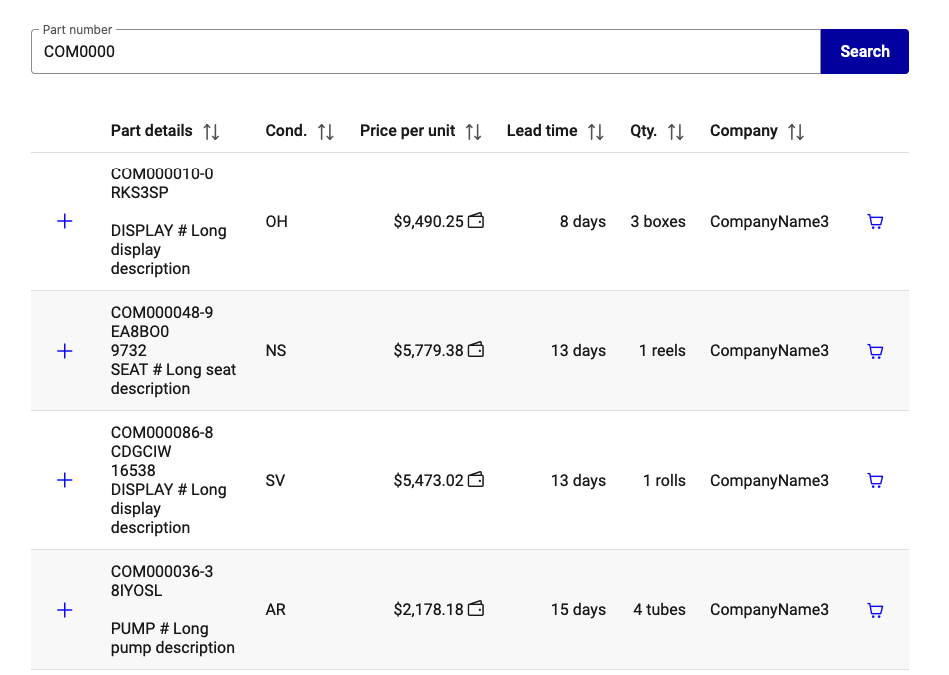
Marketplace result table combining direct listings, alternates and auctions, with the filter bar at the top
Approved suppliers
Suppliers that have been marked as approved by your company administrator are highlighted in green throughout the marketplace and all cart views. This visual cue helps you prioritise purchases from suppliers that have been vetted internally for quality and reliability.
For details on how approval is granted and how to manage approved suppliers, see the Approved Suppliers section of the Connector FAQ.
Pricing visibility
If your company is on the free-of-charge Connector package, parts that suppliers have published with a price are shown with a masked placeholder price (a blurred value with an Upgrade to BRONZE to see prices tooltip) instead of the real figure. The Buy button is disabled for these rows. You can still see the part is on offer; to discover the actual price you need a paid Connector package, or you can contact the seller off-platform.
Parts that suppliers have intentionally published without a price (see
Free-of-charge listings) show - in the price column for all viewers
and expose an RFQ button instead of Buy. Submitting an RFQ opens a
shopping-cart line so the seller can respond with a price in the
cart chat. Free-of-charge buyers can submit RFQs
on unpriced listings normally — only the priced rows are masked for
them.
Acting on a listing
Every row in the result list ends with a single action button. The label and styling depend on the listing type, so it is always obvious at a glance how a part can be acquired:
- Buy:
Shown for listings published with a price (or an exchange fee). Solid button. Opens the purchase dialog from which you can either send the part to your shopping cart for negotiation, or finalise the deal immediately via Quick buy at the published price.
- RFQ:
Shown for listings published without a price — i.e. rows whose price column reads
-(see Free-of-charge listings). Outlined button. Because no price is published, Quick buy is not meaningful here; clicking RFQ opens the same dialog to create a cart line with the seller, who then responds with a price in the cart chat.- Bid:
Shown for parts that are currently part of a running auction. Outlined button. Clicking it takes you to the auction screen instead of opening the cart dialog — auction parts are not negotiated through the cart workflow.
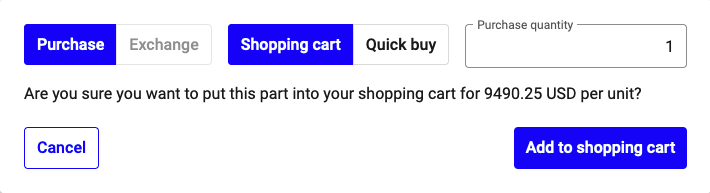
Purchase options dialog opened from a Buy or RFQ button
Priced vs. unpriced listings
The two flows differ only in which options are usable inside the purchase dialog:
Listing |
Button |
Available actions |
|---|---|---|
With price (or exchange fee) |
Buy (solid) |
Shopping Cart — start a negotiation with the seller; the line
opens at status |
Without price (price column shows |
RFQ (outlined) |
Shopping Cart — create a cart line so the seller can respond
with a price. The line opens at status |
Note
Quick buy finalises the transaction without further negotiation — the part is purchased at the listed price as soon as you confirm the prompt. It is only available for listings that carry a price; for listings without a price, you must always go through the cart in order to obtain a price first.