Inventory
The Inventory component provides all tools to manage a company’s sales inventory on IATA MRO SmartHub: overview of current listings, CSV-based upload and update, exchange listings, and customer-specific visibility and pricing.
Inventory table
The inventory table lists all parts currently offered for sale by your company. Filters on the left narrow listings down by part details, condition, visibility, price and other attributes. Clicking the plus icon on a listing opens the full part details, including all generic data, stock attributes, visibility and customer-specific prices.
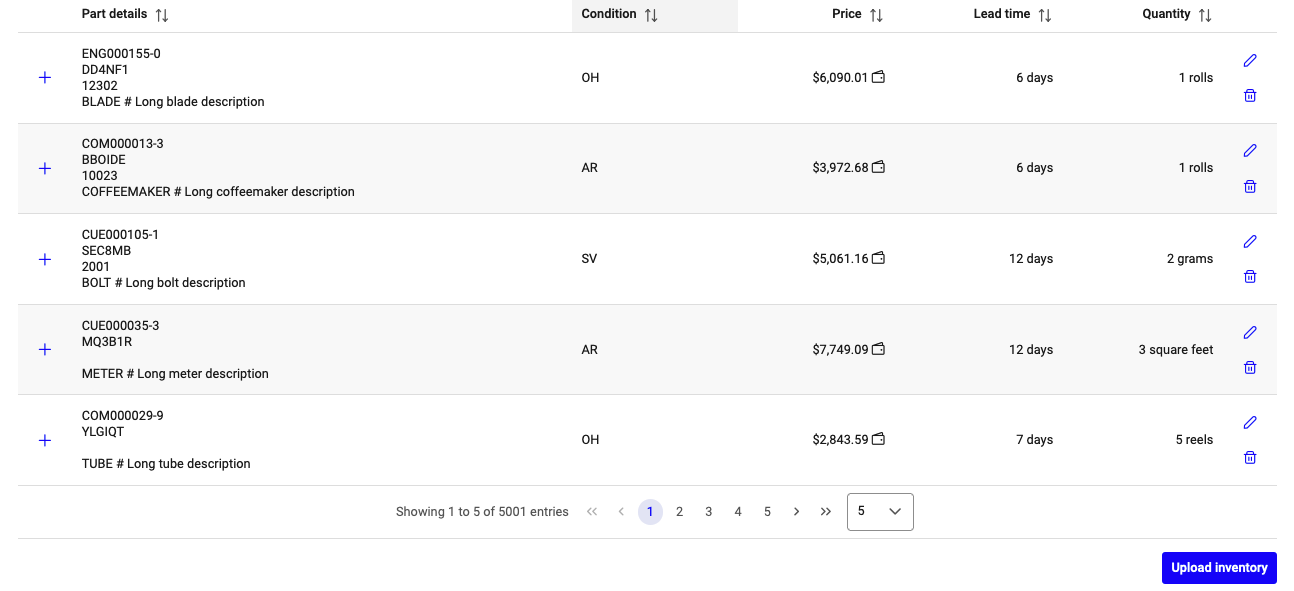
Inventory overview table
For each listing two actions are available directly in the table:
- Delete:
The trash icon removes the listing from the sales inventory. If the listing is currently referenced by any open shopping cart line, the buyer is notified about the removal and the line moves to
closed(the part details are preserved in the cart history).- Edit:
The pencil icon opens a form to edit non-identifying fields for the listing. Fields that uniquely identify the part (part number, MFR, serial number, owner stock ID) cannot be edited inline — use the upload workflow to change those.
Documentation & certificates
Documentation and certificates can be attached to each listing as PDF, TIFF or PNG files. The upload option is located at the end of the part details section. If multiple files are uploaded they are merged into a single PDF during upload; the file contents themselves are not modified.
Exchange listings
A part can be offered for outright sale, exchange or both. The distinction
is made on the listing itself: if Price [USD] is set the part is
listed for outright sale, if Exchange fee [USD] is set the part is
listed for exchange. Both can be set on the same listing.
To list a part for exchange, the following additional fields apply:
- Exchange fee:
Monetary fee in USD for getting access to the exchange part. Required to list a part for exchange.
- Core return time:
Time to return the core to the supplier, in days. Required for exchange.
- Core value:
Monetary value of the unit sent to the customer, in USD. Required for exchange.
- Additional fee to return core later:
Optional surcharge in USD if the customer is allowed to return the core later than the core return time.
- Additional time to return core later:
Optional extra time period for late core return.
- Mark up on repair costs:
Optional mark-up in USD applied to the repair costs that the customer will be invoiced for.
The listings table contains an Exchange fee [USD] column. A value here indicates that the part is available for exchange; clicking the value opens a screen with the full exchange details.
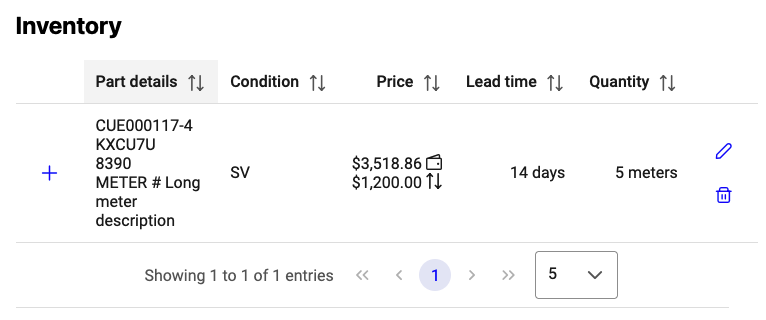
Part listed for exchange sale on the seller side
Upload inventory
The Upload inventory button below the inventory table opens the CSV upload screen.

Upload inventory with CSV file
Note
For details about automated inventory management via API, see Interfaces with External Systems.
Uploading a new inventory replaces all current listings on IATA MRO SmartHub for the selected visibilities based on the data in the CSV. Listings that match an existing row by natural key (company, customer, part number, serial number / owner stock ID / condition) are updated in place; rows that no longer appear in the upload are removed.
Use the download template button to get a sample CSV file. The sample row may be left in the file — it is removed automatically on upload if unchanged.
Visibility & customer-specific pricing
Visibility and pricing now live directly on each listing. The separate Price Rules upload from earlier versions has been retired — customer specific pricing is expressed by including one row per (part, customer) combination in the regular inventory upload.
Visibility types
Two visibility types are available during upload:
- Default for Connector:
The listing is visible to every company that follows you and has no company-specific listing for the same part. This includes companies that join IATA MRO SmartHub after the upload.
- Selected companies:
The listing is visible only to the companies you select during upload. To select companies, move them from the Available section to the Selected visibilities section by drag and drop or via the arrow buttons. Selected suppliers are notified by email once the upload completes.
Note
To actually see the inventory you list for sale, the buying company must follow your company.
Customer-specific pricing
Different prices for different customers are expressed by uploading one row per (part, customer) combination in the same inventory file. The visibility column on each row selects which customer that pricing applies to. The legacy Price Rules upload is no longer accepted.
Example: To offer part PN-1234 to Company A at 1000 USD and to
Company B at 900 USD, include two rows in the inventory CSV — one with
visibility Company A and price 1000, one with visibility Company B
and price 900.
A default-for-Connector row plus any number of company-specific rows can coexist for the same part. Buyers see the most specific row that applies to their company; if none matches, they see the default-for-Connector row.
Free-of-charge listings
A listing may be uploaded with no price. Use this for parts that are
available on request, consignment pre-listings or any case where the
price is intentionally not published. The listing still appears in the
marketplace; the price column shows - to viewers and the action
button on the row switches from Buy to RFQ, so buyers can start a
cart negotiation to ask for a price.
Listings without a price and listings with a price can coexist freely in the same inventory file — pricing is an optional attribute per row, not a mode for the whole upload.
Note
This refers to listings published without a price by the seller. It is unrelated to free-of-charge Connector packages on the buyer side (where buyers see no price for listings published with a price by the seller).