Cart workflow
Every part added to a shopping cart creates a cart line. The same record appears to the buyer in their Shopping cart and to the seller in their Requests view — both screens are mirror images of each other, sharing the same status, drawer layout and chat thread.
Status lifecycle
Each cart line carries an explicit status that drives what actions are available and where the line appears.
Status |
Meaning |
|---|---|
|
Line has been created by the buyer and is in negotiation. No price offered by the seller yet. |
|
Seller has provided a price; awaiting buyer action (accept or withdraw). |
|
Buyer accepted the seller’s offer. A transaction is created and the line moves to its terminal state. |
|
Seller declined to quote on this line. Terminal state. |
|
One side withdrew the line before agreement was reached. Terminal state. |
|
Line is closed (transaction completed or stock no longer available). Terminal state. |
Active tabs in both the Shopping cart and Requests views list lines in
open or quote. The closed tabs collect everything in no_quote,
accepted, withdrawn or closed.
Side drawer
Clicking a line in either view opens a side drawer with full line details: part attributes, price and subtotal, status, the seller/buyer counterparty and the cart chat. The drawer is identical on the buyer and seller side; only the available actions differ (see below).
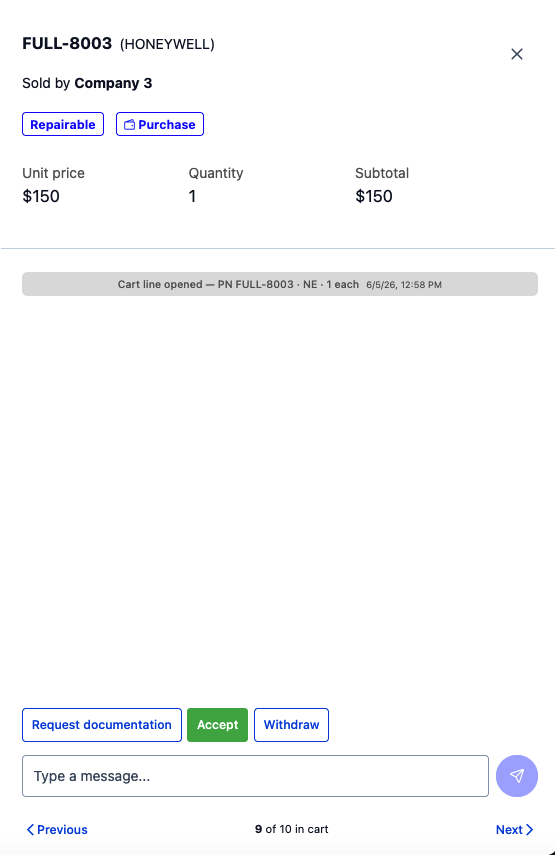
Cart line drawer with details, status and chat panel
Cart chat
Each cart line has its own message thread between the buyer and the seller. The thread is the primary channel for negotiating price, requesting additional information, sharing documentation references or coordinating delivery details on a specific line.
Key workflow events are written into the thread as system messages automatically:
The line is opened — initial message with part number, condition, quantity and seller.
The seller declines to quote (
no_quote).A side withdraws the line.
The buyer requests documentation.
The buyer accepts the seller’s offer.
System messages provide a complete audit trail of the cart line without any manual logging effort. The thread shows the last four weeks of messages by default; older history remains stored in the audit log.
Buyer view — Shopping cart
The buyer’s Shopping cart is reachable from Connector → Shopping cart. Active and closed lines are split into two tabs. Each line is identified by a stable cart identifier so that re-uploads of seller inventory do not disconnect cart lines from the underlying part.
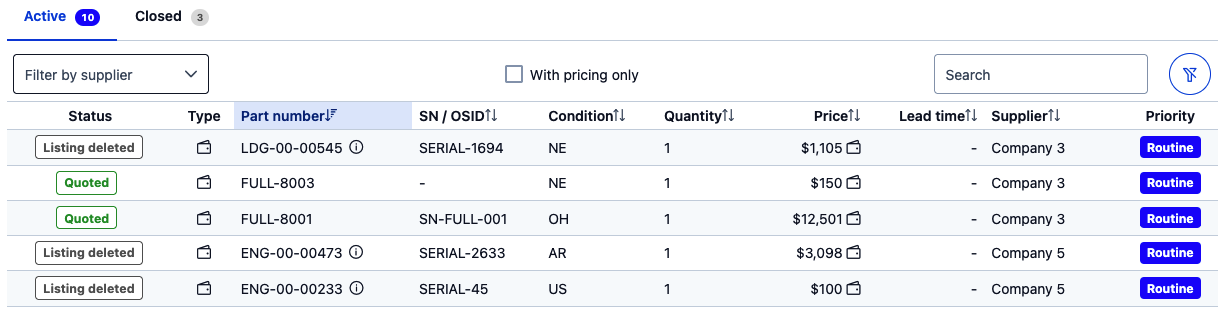
Shopping cart with active and closed tabs
Available actions in the drawer:
- Accept offer:
Confirms the seller’s quote at the offered price. Creates a transaction, moves the line to
acceptedand notifies the seller. A confirmation prompt is shown before the action is applied. If an open demand exists for this part number on your side, a checkbox lets you close that demand at the same time.- Withdraw:
Withdraws the line from the cart. Moves the line to
withdrawnand notifies the seller. Confirmation required.- Request documentation:
Asks the seller to provide documentation for the part. The request is logged as a system message in the cart chat and the seller is notified. Confirmation required.
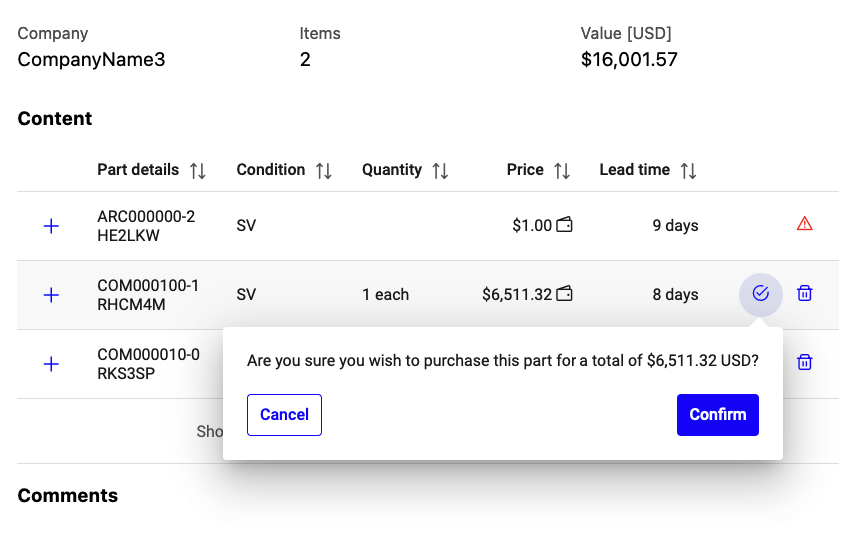
Confirmation prompt when accepting an offer
Note
Every cart action (accept, withdraw, request documentation) requires explicit confirmation, reducing the risk of accidental clicks.
Seller view — Requests
The seller’s Requests view is reachable from Connector → Requests. It is the mirror image of the buyer’s shopping cart: every line a buyer has created against your inventory appears here. The same active/closed tab split and side drawer with chat apply.
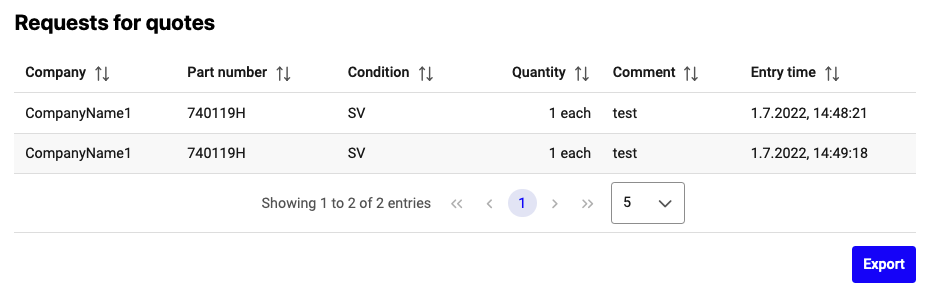
Requests view for sellers — buyer cart lines split into active and closed
Available actions in the drawer:
- Update price:
Provide or update the price for the line. Moves the line to
quoteand notifies the buyer. The new price is captured in the cart chat as a system message.- No quote:
Decline to quote on this line, e.g. when the requested part is not available or you do not wish to make an offer. Moves the line to
no_quote. Confirmation required.- Withdraw:
Withdraws the offer on this line. Moves the line to
withdrawn. Confirmation required.
The cart chat lets you exchange free-form messages with the buyer to clarify condition, delivery details or any other line-level question before quoting.