Company Settings
The company settings menu allows company administrators to manage relationships to other companies on IATA MRO SmartHub, administrate users, the company profile, and some company wide settings.
User list
This screen shows an overview of the current user accounts of your company. On the top, the number of active and total available users for each IATA MRO SmartHub module is displayed. Inactive accounts do not count into the user limits. In the table below, you can find a detailed overview of all user accounts.
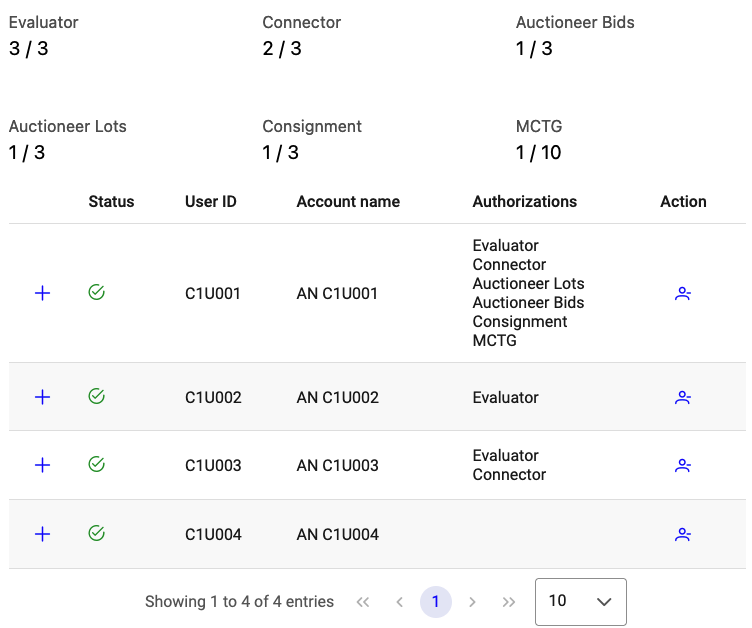
List of existing users
Activation and de-activation of user accounts
The icon in the Status column indicates the status of a user.
- Green check:
The user account is activated and is or can be authorized to have access to the different IATA MRO SmartHub modules.
- Red exclamation:
The user account is deactivated and cannot log in to IATA MRO SmartHub.
To activate or deactivate a user account click on the icon in the Action column. When a user account is deactivated, access to all modules is revoked and login to the IATA MRO SmartHub is disabled. There is no notification sent out to the user.
Authorizing user for modules
Clicking on the + symbol shows details for the selected user such as registration date, contact details, or the last login date. The lower section shows the authorization management. To authorize a user for a particular module mark the respective checkbox and click on save authorizations.
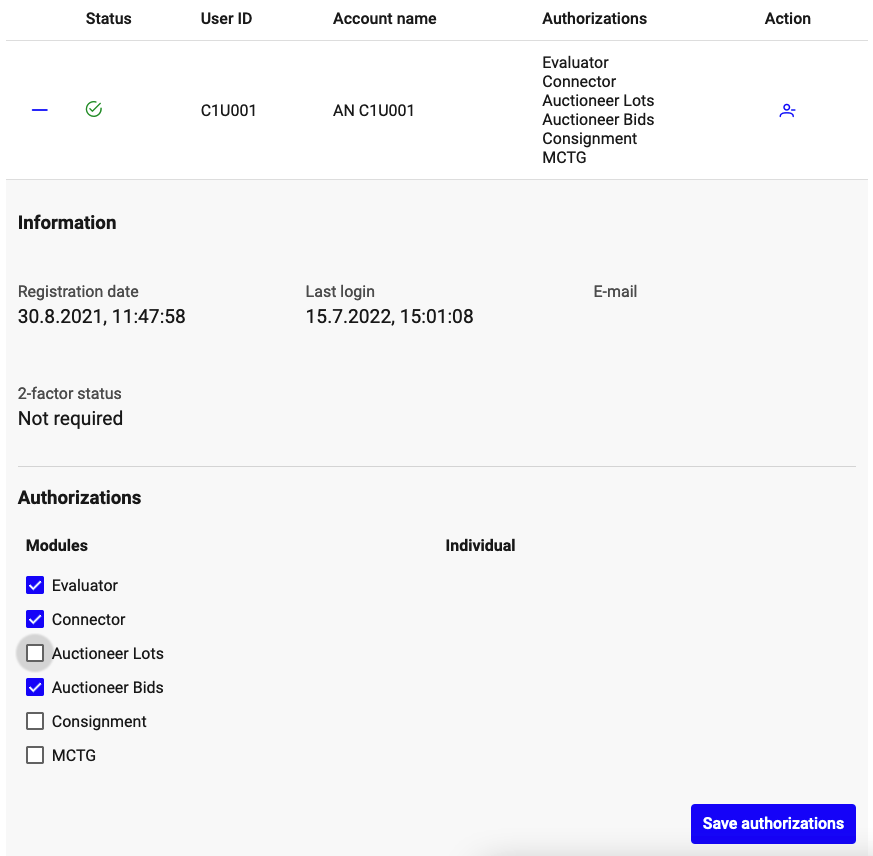
User authorizations
For some modules, individual authorizations are available. These authorizations are shown on the right part of the authorization section. They can only be selected if the user has authorization for the corresponding module. Removing a module authorization automatically removes the respective individual authorizations.
Note
When doing ad-hoc changes to user authorizations while the user is logged in to the IATA MRO SmartHub, please ask the user to log out, close the browser window, and log in again. This is necessary to activate the newly added authorizations.
Adding new user accounts
New users must register via the IATA MRO SmartHub registration form using their business email address. This can be reached under https://mrosmarthub.iata.org/registration/
When a user registers, they will be associated to a company based on the domain of their email address. It is important that registrants use their official business email address, as otherwise IATA MRO SmartHub cannot identify the correct company.
After a user has been successfully registered, the account only has access to the Auctioneer module as a bidder. For any further access, the company administrator has to add the required authorizations.
Profile
Your company profile is your business card on IATA MRO SmartHub. A complete, up-to-date company profile helps other companies find you on the platform and start trading relationships.
A company profile consists of
A short description of your company
A company logo image (JPG or PNG)
Your general terms of service as a PDF file (max. 8MB) or as link to your company’s website
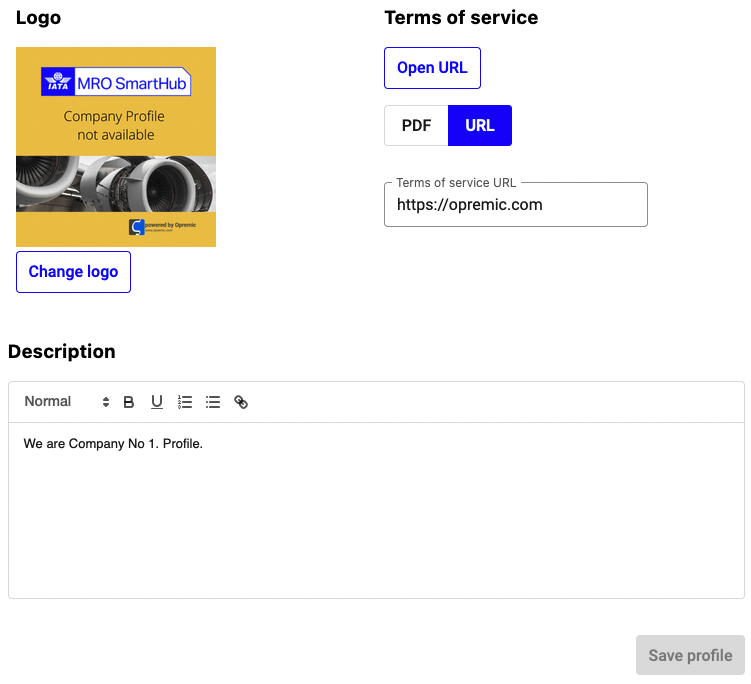
Company profile
Click Save profile to apply your changes. The updated version will be immediately live.
Settings
In this screen, you can change settings that apply to your company. After changing any settings, click Save settings to apply them.
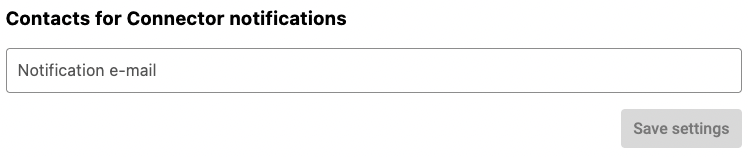
Company wide settings
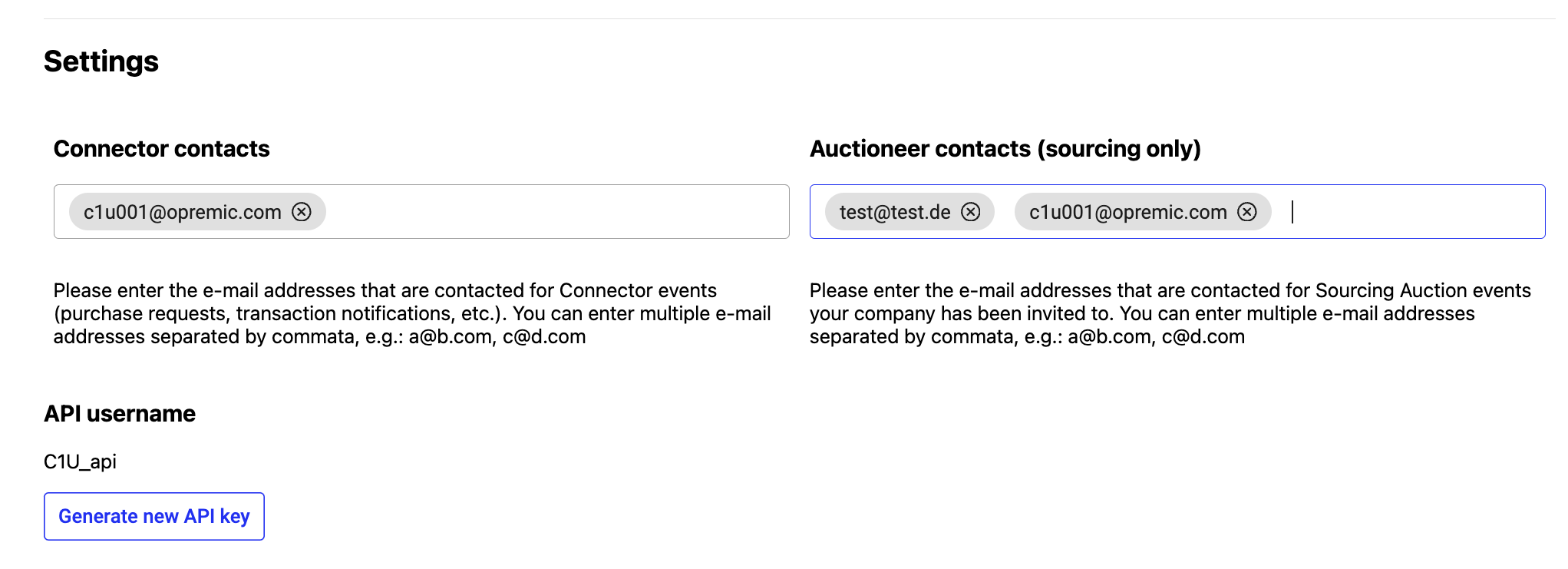
Contacts for Connector notifications
Enter email addresses for contacts and team mailboxes to be notified about transactions or initiated negotiations on the Connector module. You can add multiple email addresses by separating them with commas.
Auctioneer contacts (sourcing only)
Enter the email addresses to be contacted for Sourcing Auction events your company has been invited to. Multiple email addresses can be added, separated by commas.
Offer classification parameters
Companies can configure custom parameters that control how supplier offers are evaluated in the Procurement Cockpit and Sales Price Finder. These parameters define:
Quality thresholds — maximum FMV stage, minimum event counts, and maximum scrap rate to consider a part evaluable
Time-window criteria — minimum number of transactions in the last 12 months for reliable pricing
Exclusion flags — whether to exclude kerosene-containing, hazardous, or back-to-birth parts from certain calculations
Pricing weights — how to blend FMV values across conditions (US, AR, SV, NE) and how to weight FMV against average market prices
Margin multipliers — factors applied to calculate aggressive pricing recommendations
When no company-specific parameters are configured, system-wide defaults are applied. These defaults are calibrated to provide reasonable pricing guidance for the majority of parts. Companies with specific sourcing strategies or risk profiles can override individual parameters to tailor the evaluation to their needs.
These settings are used by the Worklist — Listings tab evaluation logic and the Sales Price Finder pricing corridor calculations.
Evaluator — MPV / MSV calibration
The Evaluator tab in Company Settings lets administrators tune how the Market Purchase Value (MPV) and Market Sales Value (MSV) corridor is computed for the company. For the conceptual background, see Market values: FMV, MPV & MSV.
Two boundary parameters and one optional override are available:
- Min spread:
Minimum width of the MPV/MSV corridor expressed as a fraction (e.g.
0.10= at least 10% from FMV). Prevents the corridor from collapsing when the underlying transactions are very tightly clustered.- Max spread:
Maximum width of the corridor (e.g.
0.40= at most 40% from FMV). Prevents the corridor from becoming unusably wide when transactions are dispersed. Must be greater than or equal to the minimum.- Spread override:
Optional fixed spread that overrides the IQR-based calculation entirely. When set, the min/max boundaries are ignored. Leave empty to use the automatic logic.
The defaults are min = 0.10 and max = 0.40 with no override.
Note
Changes to these parameters do not apply immediately. They are picked up by the next scheduled calculation cycle on the 1st of the following month. The “Last updated” indicator on the tab shows when the values were last changed and by which user.
Note
The MPV/MSV spread is one input to the FMV Quality scorecard’s price consistency dimension (see FMV Quality scorecard). A very wide spread will mark more parts as consistent but loses resolution; a very narrow spread is more discriminating but may produce more inconsistencies. The defaults are calibrated for the majority of parts.