Demands
The demands feature lets companies upload lists of parts they are looking for. These lists are automatically matched against available stock on the Connector, so buyers can quickly identify which parts are available and manage their demand pipeline. Selected suppliers can be notified about new demands so they can update their inventory accordingly.
Demand lists can be uploaded as either internal lists (visible only to your own company) or external lists (visible to specific suppliers).
Creating new demands
Clicking Create demands opens the screen for uploading new demands.
Two upload types are available:
- Add:
New demands are appended to existing ones without merging. Two demands for the same part / condition do not collapse into one — they appear as two separate items.
- Replace:
All existing demands are replaced by the uploaded ones.
The Reason field can be used to attach an internal reference to the demand.
For internal demands, leave the Visibility selection empty. To publish demands to specific suppliers, move the desired companies from Available companies to Selected visibilities (drag and drop or arrow buttons). After upload, the selected suppliers are notified by email.
To upload demands, click the download-template button, fill in the CSV template and upload the file. An upload summary lets you verify the data before clicking Confirm upload.
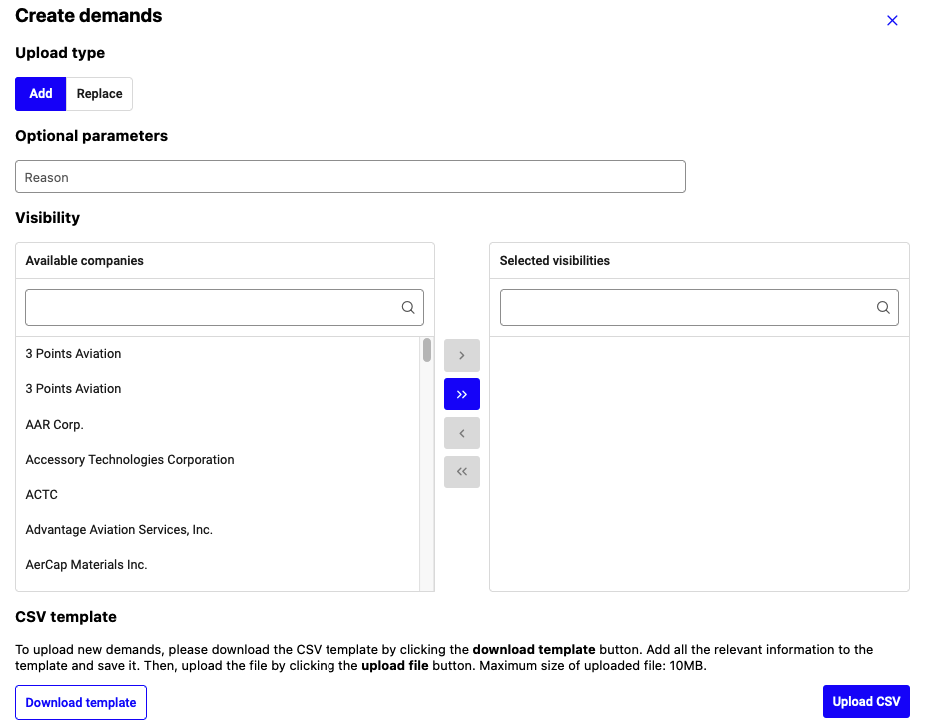
Creating new demands
Note
The uploaded target price is never shown to suppliers. They only see the part details and the comment field.
Managing and using demands
The overview table lists all demands you have uploaded. The Connector matches demands and available parts in real time; the Matches column shows the number of matching listings. The columns Target price per unit [USD] and Target condition are highlighted in green when at least one match meets the target price and condition.
Filters on the left narrow the demand list.
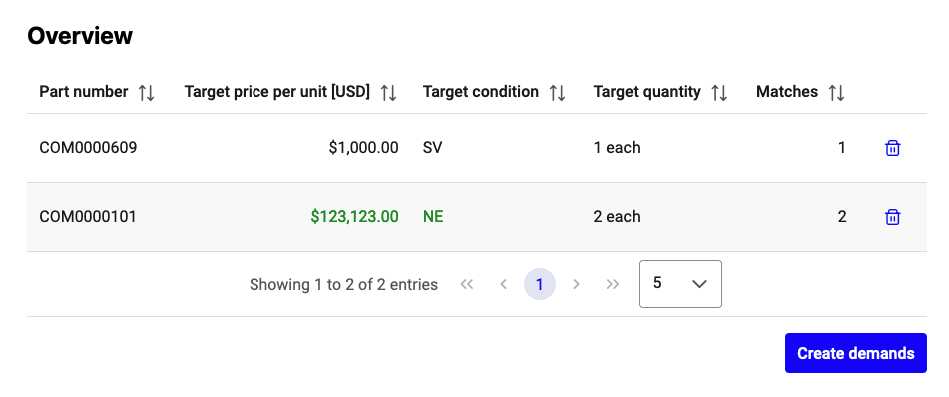
Demand overview table
Clicking a demand shows the detailed matching results. From there you can click the shopping-cart icon on a matching row to open the purchase dialog and either add the part to your shopping cart or use Quick buy. The icon is disabled for matches without a published price — in that case, open the part from the marketplace and use the RFQ button to ask the supplier for a quote.
Demand visibility for suppliers
Suppliers that you select as visibility for a demand see the matching parts they could offer directly in their marketplace search results (alongside their own listings), making it easy to react to new demands without a separate inbox. To pitch a part for a demand, the supplier simply uploads or updates the corresponding listing in their inventory.
Note
Condition matching is not strict. Parts with lower conditions, e.g. the buyer requests a part in SV condition and the supplier offers it in AR, are matched and shown to the buyer. The matching algorithm highlights matches that meet or exceed the requested condition.